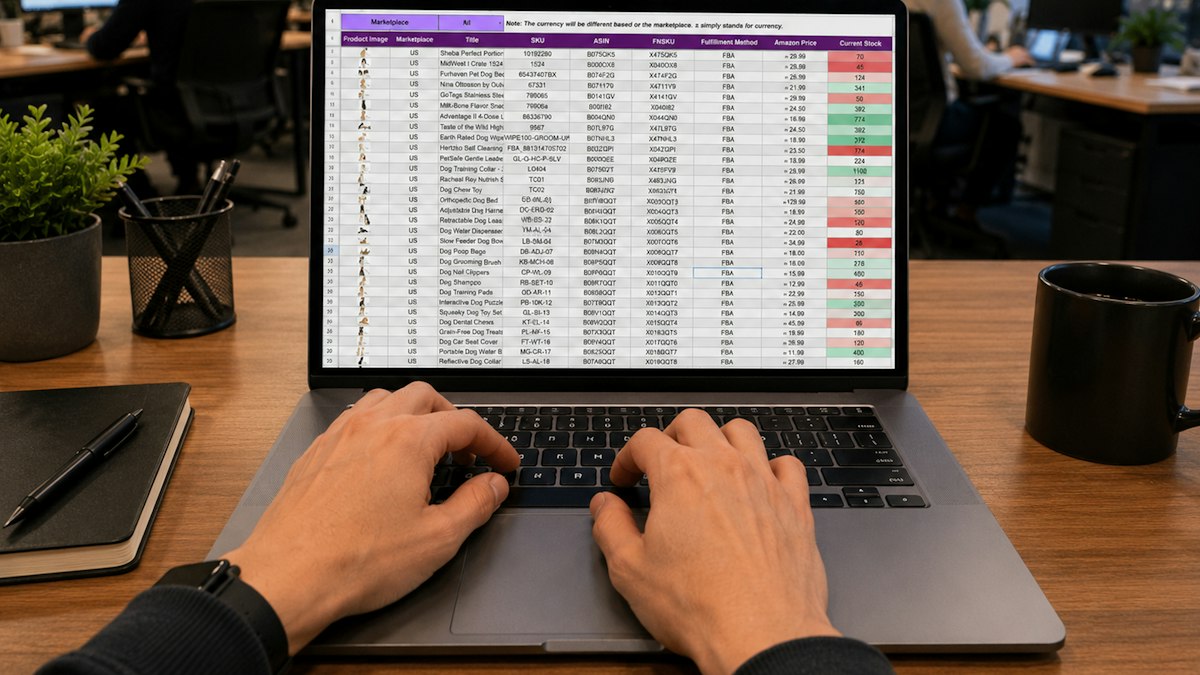
The fear of “losing our data” keeps many schools on registers and spreadsheets for years. In reality, moving from Excel to school ERP software is a structured job: clean your lists, define your structure, import, test and train. Done well, a school can be live quickly. This guide walks through the school data migration process and shows what to prepare before you start.
Table of Contents
Before You Start: What You Need
- Student list (name, class, section, guardian contact)
- Class, section and subject structure
- Fee categories, amounts and discounts
- Staff list with roles and assigned classes or subjects
- Current academic year dates

Step 1: Clean Your Student Data
Remove duplicates, fix spelling and make sure every student has a class and a working guardian phone number. Parent mobile numbers matter most because alerts and portal logins depend on them.
Step 2: Standardize Classes and Sections
Use one naming style, for example “Grade 5 – A”. Inconsistent names are the most common reason an import needs to be repeated.
Step 3: Define Your Fee Structure
List every fee: admission, tuition, transport, exam, annual charges. Decide which are one-time and which are recurring, and note sibling, merit or need-based discounts. Automated vouchers and reminders depend on this structure, as explained in simplifying school fee collection in Pakistan.
Step 4: Prepare Staff Records
Add every teacher and staff member with a role, assigned subjects and classes. Staff records also drive access control and payroll.
Step 5: Bulk Import Students From Excel to School ERP
Apna School Edu lets you bulk import hundreds of students in one click, instead of typing each profile. After the import, spot-check a few students from each class.
Step 6: Configure the Academic Year
Set up the current academic year so promotions and carry-forward of records work cleanly in future years.
Step 7: Run a Parallel Week
For one week, mark attendance and generate fee vouchers in the system while keeping the old register as backup. Compare results and fix any structure issues before you switch fully.
Step 8: Train Teachers, Accountants and Parents
A system succeeds when people use it. Apna School Edu provides free training for your whole team. Share the parent portal login details and explain what parents can see: attendance, fees, results, diary and notices.
Migration Checklist
| Task | Owner | Done? |
|---|---|---|
| Student list cleaned | Admin | ☐ |
| Classes and sections standardized | Principal | ☐ |
| Fee structure defined | Accountant | ☐ |
| Staff roles confirmed | HR / Admin | ☐ |
| Students imported and spot-checked | Admin | ☐ |
| Parallel week completed | All | ☐ |
| Staff trained | Vendor + Principal | ☐ |
| Parents informed | Admin | ☐ |
Common Mistakes to Avoid
- Importing before cleaning duplicates.
- Changing class names mid-way.
- Skipping staff training.
- Switching on the first day of a busy month. Choose a calm week.
What Is Apna School Edu’s Timeline?
Your portal is fully configured and your existing data migrated in under 24 hours, with free training for your team. See the process on How It Works, or use our checklist to choose school management software to compare vendors first. Small schools can start with free school management software and move up later.
Frequently Asked Questions
How long does it take to move a school from Excel to school ERP software?
With clean data prepared, Apna School Edu configures the portal and migrates data in under 24 hours.
Can I import students from Excel?
Yes. You can bulk import hundreds of students in one click.
Will I lose my old records?
Keep your original files as backup, and run a parallel week before fully switching.
Do teachers need technical skills?
No. Teachers use a focused staff portal, and training is free.
Leave a Reply